Saturday, August 3, 2013

FRM-92095: Oracle Jinitiator Version Too Low. Please install version 1.1.8.2 or higher

Cause: Installed latest JRE 7U25, and faced below issue while opening a form in R12.1.1,


FRM-92095: Oracle Jinitiator Version Too Low. Please install version 1.1.8.2 or higher 


Resolving Jinitiator Version Too Low Errors
 
Oracle JInitiator 1.3 was desupported for E-Business Suite environments at the end of July 2009. JInitiator 1.1.8 was desupported at the end of December 2008. E-Business Suite users should have switched from Oracle JInitiator to the native Java JRE plug-in at that time. Some users might be seeing confusing error messages like this: 

FRM-92095: Oracle Jlnitiator version too low. Please install version 1.1.8.2 or higher. 

This error message may occur if you try and launch an E-Business Suite form using the JRE 7 client plug-in without applying the prerequisite Forms patch needed to enable JRE 7 compatibility. 
To prevent this issue - and all other JRE 7 compatibility issues - by ensuring that they have applied the latest certified patches documented for JRE 7 configurations to their EBS application tier servers.


Apply Forms patch 14614795 to EBS 12.0 and 12.1 environments (Note 437878.1)

For EBS 12,


Cheers !!!

- Manish Nashikkar

Autoconfig was failing on adgendbc.sh with Invalid Host error

Today when I was running Autoconfig on R12.1.1, it was failing with following message,

  [SETUP PHASE]
  AutoConfig could not successfully execute the following scripts:
    Directory: /u01/app/oracle/EBS/inst/apps/EBS_ebs1/admin/install
      adgendbc.sh             INSTE8_SETUP       1

AutoConfig is exiting with status 1


After looking in autoconfig log, found below error

Running Setup Process 2 of 7 for AD_TOP
Executing script in InstantiateFile:
/u01/app/oracle/EBS/inst/apps/EBS_ebs1/admin/install/adgendbc.sh

script returned:
****************************************************

adgendbc.sh started at Thu Jan 19 15:05:17 IST 2012


SQL*Plus: Release 10.1.0.5.0 - Production on Thu Jan 19 15:05:18 2012

Copyright (c) 1982, 2005, Oracle.  All rights reserved.

Enter value for 1: Enter value for 2: Enter value for 3: Connected.
[ APPS_DATABASE_ID ]
Application Id : 0
Profile Value  : EBS
Level Name: SITE
INFO           : Updated/created profile option value.
.

PL/SQL procedure successfully completed.


Commit complete.

Disconnected from Oracle Database 11g Enterprise Edition Release 11.1.0.7.0 - 64bit Production
With the Partitioning, OLAP, Data Mining and Real Application Testing options


Params=fnd_jdbc_buffer_min=1
fnd_jdbc_buffer_max=5
fnd_jdbc_buffer_decay_interval=300
fnd_jdbc_buffer_decay_size=5
fnd_jdbc_usable_check=false
fnd_jdbc_context_check=true
fnd_jdbc_plsql_reset=false


Unique constraint error (00001) is OK if key already exists
Invalid Host
Invalid Host

ADD call failed with exit code 1

Trying to update information ...

Invalid Host
Invalid Host

UPDATE call failed with exit code 1
Updating parameters:  fnd_jdbc_buffer_min=1 fnd_jdbc_buffer_max=5 fnd_jdbc_buffer_decay_interval=300
Invalid Host
Invalid Host

Updating parameters:  fnd_jdbc_buffer_decay_size=5 fnd_jdbc_usable_check=false fnd_jdbc_context_check=true
Invalid Host
Invalid Host

Updating parameters:  fnd_jdbc_plsql_reset=false
Invalid Host
Invalid Host


DBC generation failed with exit code 1

Updating Server Security Authentication
Invalid Host
java.sql.SQLException: Invalid number format for port number
Database connection to jdbc:oracle:thin:@host_name:port_number:database failed
Updating Server Security Authentication failed with exit code 1
adgendbc.sh exiting with status 1
ERRORCODE = 1 ERRORCODE_END
.end std out.

.end err out.

Cause:
-------
Server name was unresolvable due to which .dbc file wasn't generated under $FND_SECURE. In my case, it was issue with my server name which was unresolvable through DNS.

Solution:
-----------
Check whether server name is resolvable / pingable and listed in either /etc/hosts file or in DNS Server (nslookup)


After correcting belonging entry in DNS, I could able to run autoconfig successfully.


Happy Reading !!!

Thanks, Manish

Monday, July 29, 2013

Enable the (Hidden) Administrator Account on Windows 8 / 7 or Vista

The Administrator account is created in Windows 8 / 7 or Vista, but since it’s not enabled you can’t use it. If you are troubleshooting something that needs to run as administrator, you can enable it with a simple command.

Windows Vista / 7

Enable Built-in Administrator Account
First you’ll need to open a command prompt in administrator mode by right-clicking and choosing “Run as administrator” (or use the Ctrl+Shift+Enter shortcut from the search box)
image

Windows 8

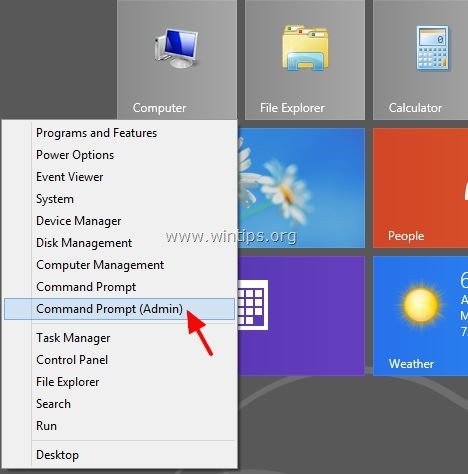
To run Command Prompt in administrative mode in Windows 8 operating system:
1. Right-click at the screen's bottom-left corner and from the pop-up menu, choose "Command Prompt (Admin)".

windows-8-admininstator-command-prompt


Now type the following command:
net user administrator /active:yes

You should see a message that the command completed successfully. Log out, and you’ll now see the Administrator account as a choice. (Note that the screenshots are from Vista, but this works on Windows 7)

You’ll note that there’s no password for this account, so if you want to leave it enabled you should change the password.

For security, don't forget to specify a password* for Administrator account after you have enable it.

(To specify a user password in Windows 7 or 8 go to: Control Panel > User Accounts options)


Disable Built-in Administrator Account
Make sure you are logged on as your regular user account, and then open an administrator mode command prompt as above. Type the following command:
net user administrator /active:no

The administrator account will now be disabled, and shouldn’t show up on the login screen anymore.